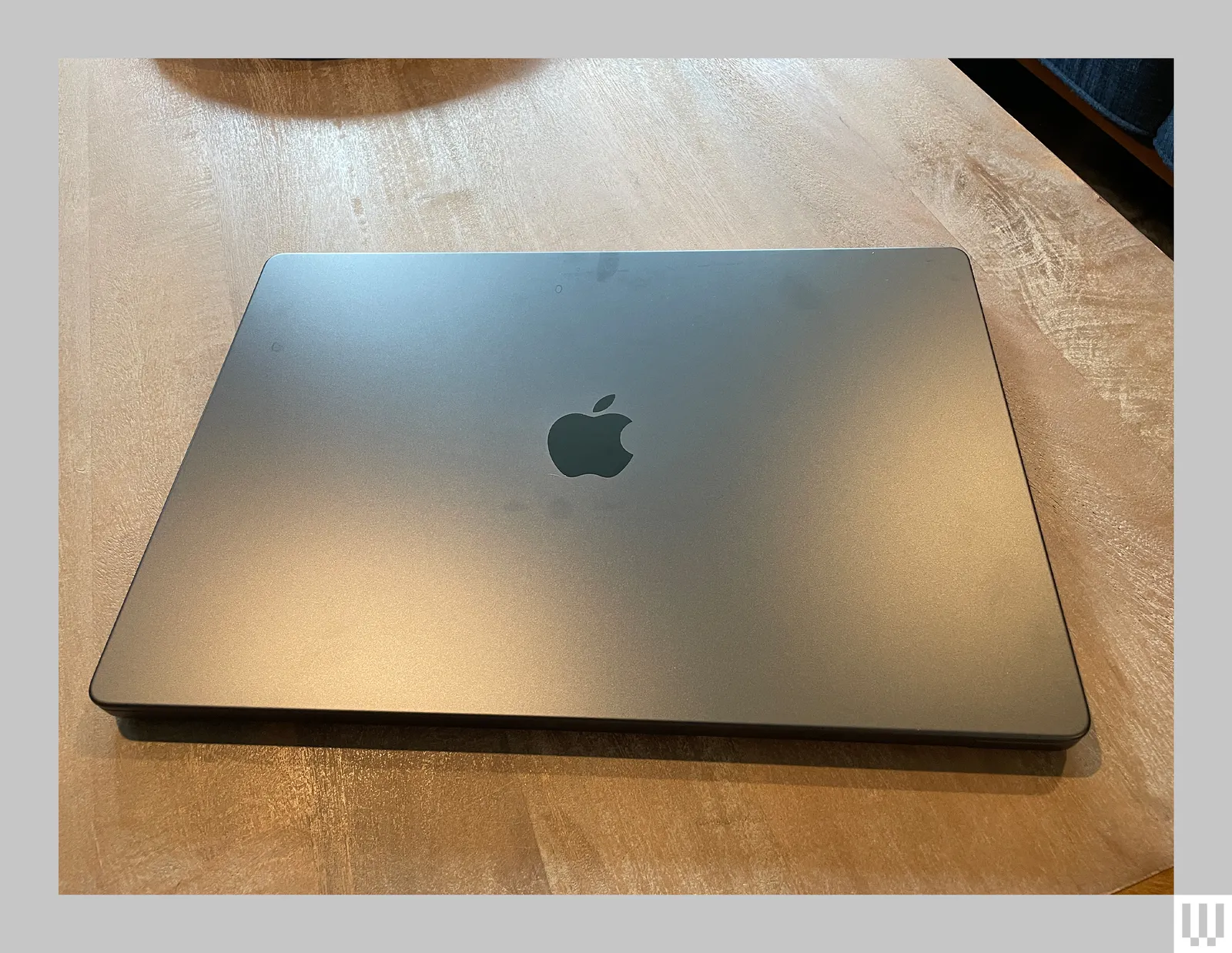
MacBooks, especially models with Apple silicon like M-series chips, are engineered for efficiency and performance. However, overheating remains a common concern among users, particularly during intensive tasks, in warm environments, or with fanless designs like the MacBook Air. While modern Macs include thermal management that prevents permanent damage through throttling, excessive heat can lead to discomfort, fan noise, reduced battery life, and performance drops.
In 2026, with M4 and early M5 models in widespread use, reports of MacBook overheating issues continue, often tied to high ambient temperatures, background processes, or specific apps. This guide explores the main causes, real-world symptoms, proven solutions, and preventive measures. Drawing from Apple Support recommendations, user experiences, and expert troubleshooting, it helps you address MacBook overheating issues effectively.
Understanding these problems ensures your device runs cooler, quieter, and more reliably for daily work, creative projects, or gaming.
Common Causes of MacBook Overheating
Several factors contribute to elevated temperatures on MacBooks.
- High CPU or GPU Load: Demanding applications, such as video editing software, 3D rendering tools, multiple browser tabs, or resource-heavy games, push the processor hard. This generates significant heat quickly.
- Poor Airflow and Ventilation: Placing the MacBook on soft surfaces like beds, laps, or blankets blocks vents. Dust buildup in fans (on Pro models) or passive cooling limitations (on Air models) restricts heat dissipation.
- Fanless Design in MacBook Air: Models like M3 and M4 Air rely on passive cooling. Under sustained loads, they reach higher temperatures (up to 100–114°C in stress tests) before throttling to protect components.
- Background Processes and Software: Rogue apps, malware, outdated macOS, or third-party antivirus can cause constant CPU activity. Some users report issues after updates like macOS Tahoe 26.
- Environmental Factors: Operating in rooms above 35°C (95°F), direct sunlight, or high humidity increases internal heat.
- Hardware Wear or Defects: Older thermal paste degradation (in Intel models) or rare manufacturing issues can play a role, though less common in recent Apple silicon devices.
These causes often combine, leading to noticeable warmth, loud fans (on Pro models), or throttling.
Symptoms of MacBook Overheating
Watch for these signs that indicate MacBook overheating issues.
- The chassis feels hot to the touch, especially on the bottom or keyboard area.
- Fans spin loudly and continuously (Pro models).
- Performance slows down noticeably during tasks.
- The device throttles, reducing speed to manage heat.
- Battery drains faster than usual.
- Rare cases show shutdown warnings or apps freezing.
In fanless Air models, heat dissipates through the body, making it feel warmer but rarely causing shutdowns due to built-in safeguards.
Effective Solutions to Fix MacBook Overheating
Follow these steps in order, starting with the simplest.
1. Optimize Your Environment and Usage Habits
- Use the MacBook on a hard, flat surface like a desk or table to allow proper airflow.
- Avoid soft surfaces, laps, or blankets that block vents.
- Keep ambient temperature between 10–35°C (50–95°F), as recommended by Apple.
- Elevate the laptop slightly with a stand for better passive cooling.
2. Manage Software and Resource Usage
- Open Activity Monitor (Applications > Utilities) and check the CPU tab for high-usage processes. Quit unnecessary apps or force-quit problematic ones.
- Close excessive browser tabs, especially in Chrome (switch to Safari for better efficiency).
- Update macOS and all apps to the latest versions for performance and thermal fixes.
- Disable startup items in System Settings > General > Login Items.
- Scan for malware using built-in XProtect or third-party tools if suspicious behavior persists.
3. Adjust System Settings for Cooler Operation
- Enable Low Power Mode (System Settings > Battery) to reduce performance and heat.
- Reduce screen brightness or enable Auto-Brightness.
- Turn on Reduce Transparency and Reduce Motion in Accessibility > Display/Motion settings (some users report significant cooling after macOS updates).
- Limit external displays or lower resolution/refresh rates if using multiple monitors.
4. Clean Vents and Fans (Pro Models)
- Gently clean external vents with compressed air (never use a vacuum).
- For internal dust, visit an Apple Authorized Service Provider if comfortable, or seek professional cleaning.
5. Monitor and Control Temperatures
- Use free tools like iStat Menus or Macs Fan Control to track temps and adjust fan curves (Pro models only).
- Avoid third-party “speed-up” cleaners, as they can worsen issues.
6. Advanced Troubleshooting
- Restart your Mac or close/open the lid to reset thermal states.
- For Apple silicon Macs, a full shutdown and restart often suffices (no traditional SMC reset needed).
- Reinstall macOS if software corruption is suspected.
- Contact Apple Support or visit a Genius Bar if hardware concerns arise.
These solutions resolve most MacBook overheating issues without hardware intervention.
Prevention Tips for Long-Term Cooling
Adopt these habits to minimize future problems.
- Regularly update macOS and apps.
- Use a cooling pad or stand for heavy workloads.
- Limit resource-intensive tasks in hot environments.
- Charge to 80% with Optimized Battery Charging enabled.
- Back up data regularly in case of rare hardware failure.
Following these reduces wear and maintains performance.
Comparison Table: Overheating by MacBook Model (2026 Insights)
This table summarizes thermal behavior across models.
Frequently Asked Questions
Why does my MacBook Air overheat even during light tasks?
Fanless designs dissipate heat through the body. High ambient temperatures, background apps, or updates can cause noticeable warmth. Use Low Power Mode and ensure good ventilation.
Is overheating normal on MacBook Pro M4 models?
Some warmth is expected under load, but excessive heat or constant fans may indicate high CPU usage or blocked vents. Check Activity Monitor and clean vents.
Can MacBook overheating damage the hardware?
Apple’s thermal throttling prevents damage by reducing performance before critical levels. Prolonged high heat may shorten component life slightly, but safeguards minimize risks.
How do I check MacBook temperature without third-party apps?
Use Activity Monitor for indirect clues (high CPU = more heat). For precise readings, tools like iStat Menus provide details.
Should I take my overheating MacBook to Apple Support?
Yes, if basic fixes fail, especially under warranty. They can run diagnostics and check for hardware issues.
These questions cover common searches related to MacBook overheating issues.
Conclusion: Keeping Your MacBook Cool and Performing Strong
MacBook overheating issues are manageable with proper habits, software tweaks, and environmental awareness. Most cases stem from usage patterns or ventilation, not defects. By following Apple guidelines, monitoring resources, and applying the solutions outlined here, you can maintain optimal temperatures and extend your device’s lifespan.
If problems persist despite troubleshooting, professional assistance ensures peace of mind. A cooler MacBook means quieter operation, better battery life, and sustained performance for years.